Login Failure Through the Console Port
Procedure
- Check whether the communication parameters are correctly configured. (The third-party software MobaXterm is used as an example here.)
Check whether a correct serial port is connected. Some PCs provide multiple serial ports with corresponding numbers. When connecting a serial port, ensure that the correct serial port number is selected.
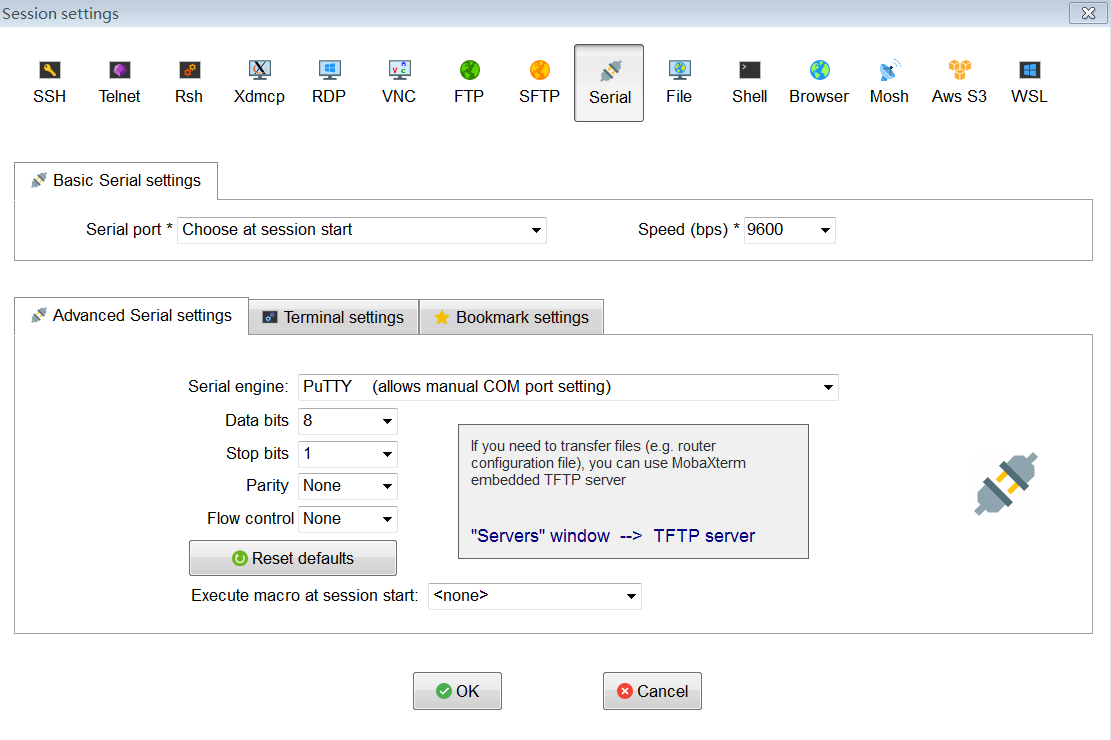
Check that the serial port settings on the PC are the same as the console port settings on the switch, as shown in Figure 1 The default console port settings are as follows:- Baud rate: 9600
- Data bits: 8
- Parity: None
- Stop bits: 1
- Flow control: None
- Check whether the serial cable is securely connected and functions properly. If necessary, replace the current cable with a properly-functioning one.
- Check whether the authentication mode is configured correctly. If you can log in to the authentication interface but the system displays an authentication failure message after you enter the correct user name and password, the authentication mode configured on the console user interface may be incorrect. Log in to the switch using other methods (such as Telnet) and check whether the local-user user-name service-type terminal command has been run in the AAA view to configure the access type for users logging in to the switch through the console port. If you cannot log in to the switch using Telnet or other remote login methods, clear console port login information using the BootROM/BootLoad menu. For details, see Clear Password for Console User in BootROM Menu Operation or BootLoad Menu Operation.